Developer Guide
- Acknowledgements
- Setting up, getting started
- Design
- Implementation
- Documentation, logging, testing, configuration, dev-ops
- Appendix: Requirements
-
Appendix: Instructions for manual testing
- Adding a student
- Editing a student
- Giving remark to a student
- Deleting students
- Finding students
- Adding a class
- Deleting a class
- Editing name of the class
- Selecting a class
- Setting a grading system in TeachBook
- Resetting a grading system in TeachBook
- Grading a student
- Sorting students
- Marking students as present
- Marking students as absent
- Printing a list of students
- Undoing Commands
- Redoing Commands
Acknowledgements
- The logic of
undoandredofeatures is adapted from AB4. - The
printfeature uses third-party library Apache POI.
Setting up, getting started
Refer to the guide Setting up and getting started.
Design
 Tip: The
 .puml files used to create diagrams in this document can be found in the diagrams folder. Refer to the PlantUML Tutorial at se-edu/guides to learn how to create and edit diagrams.
Architecture
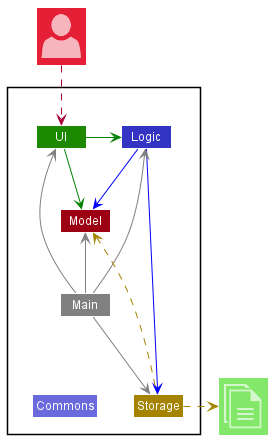
The Architecture Diagram given above explains the high-level design of the App.
Given below is a quick overview of main components and how they interact with each other.
Main components of the architecture
Main has two classes called Main and MainApp. It is responsible for,
- At app launch: Initializes the components in the correct sequence, and connects them up with each other.
- At shut down: Shuts down the components and invokes cleanup methods where necessary.
Commons represents a collection of classes used by multiple other components.
The rest of the App consists of four components.
-
UI: The UI of the App. -
Logic: The command executor. -
Model: Holds the data of the App in memory. -
Storage: Reads data from, and writes data to, the hard disk.
How the architecture components interact with each other
The Sequence Diagram below shows how the components interact with each other for the scenario where the user issues the command delete 1.
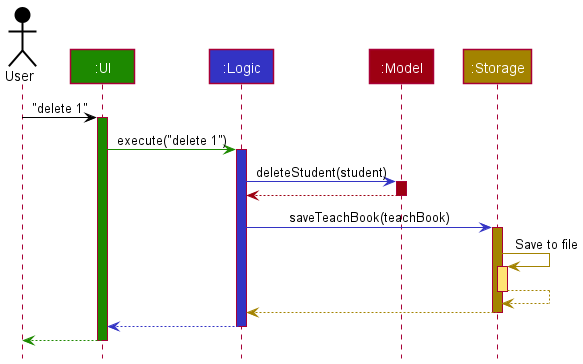
Each of the four main components (also shown in the diagram above),
- defines its API in an
interfacewith the same name as the Component. - implements its functionality using a concrete
{Component Name}Managerclass (which follows the corresponding APIinterfacementioned in the previous point.
For example, the Logic component defines its API in the Logic.java interface and implements its functionality using the LogicManager.java class which follows the Logic interface. Other components interact with a given component through its interface rather than the concrete class (reason: to prevent outside component’s being coupled to the implementation of a component), as illustrated in the (partial) class diagram below.
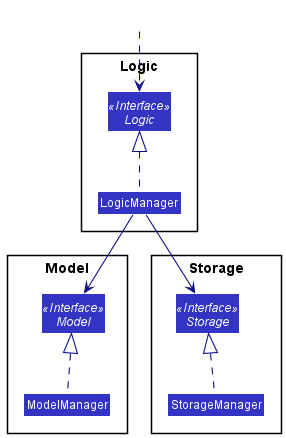
The sections below give more details of each component.
UI component
The API of this component is specified in Ui.java
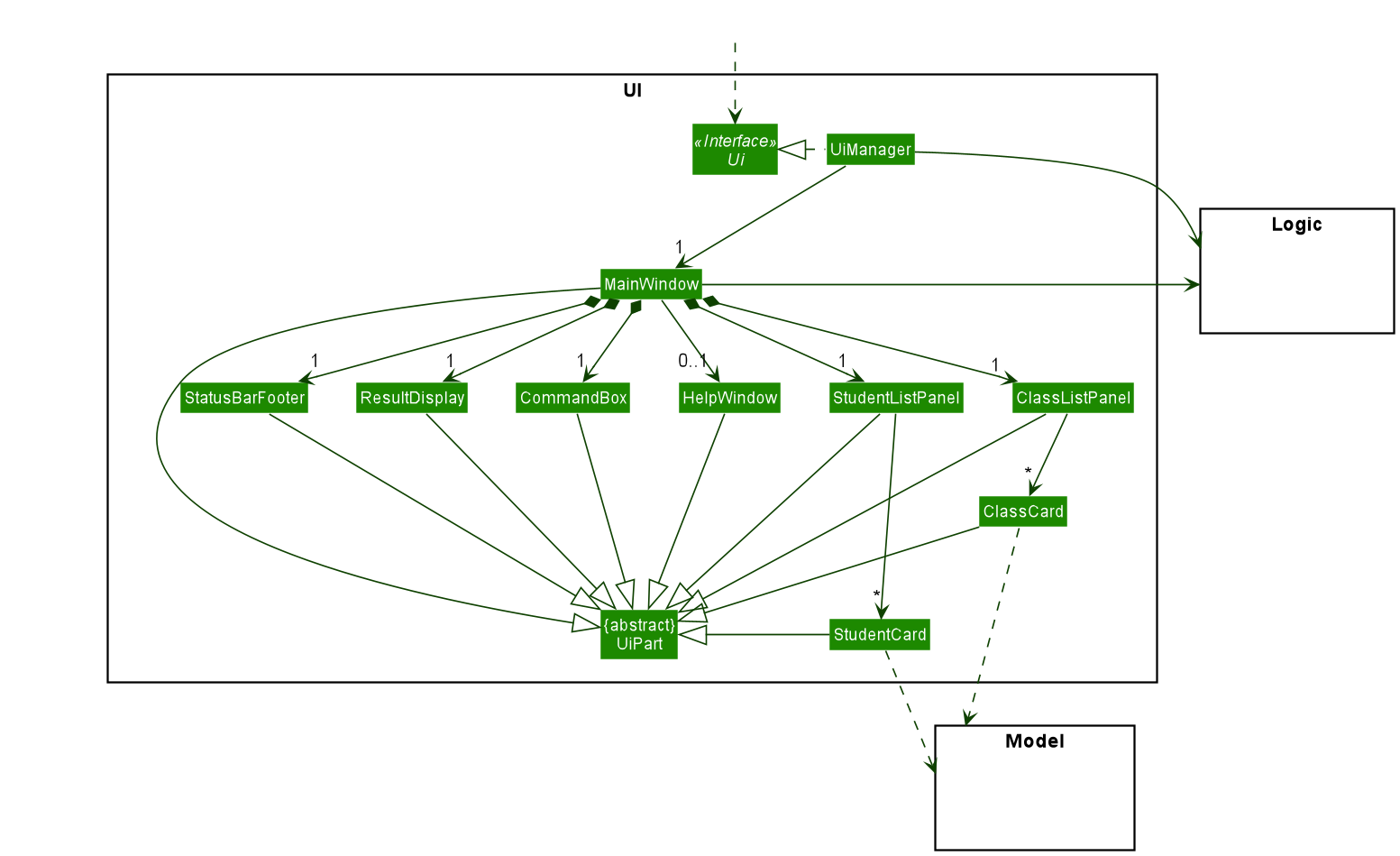
The UI consists of a MainWindow that is made up of parts e.g.CommandBox, ResultDisplay, StudentListPanel, ClassListPanel, StatusBarFooter etc. All these, including the MainWindow, inherit from the abstract UiPart class which captures the commonalities between classes that represent parts of the visible GUI.
The ClassCard will be displayed by the ClassListPanel and the StudentCard will be displayed by the StudentListPanel.
The UI component uses the JavaFX UI framework. The layout of these UI parts are defined in matching .fxml files that are in the src/main/resources/view folder. For example, the layout of the MainWindow is specified in MainWindow.fxml
The UI component,
- executes user commands using the
Logiccomponent. - listens for changes to
Modeldata so that the UI can be updated with the modified data. - keeps a reference to the
Logiccomponent, because theUIrelies on theLogicto execute commands. - depends on some classes in the
Modelcomponent, as it displaysStudentandClassobject residing in theModel.
Logic component
API : Logic.java
Here’s a (partial) class diagram of the Logic component:
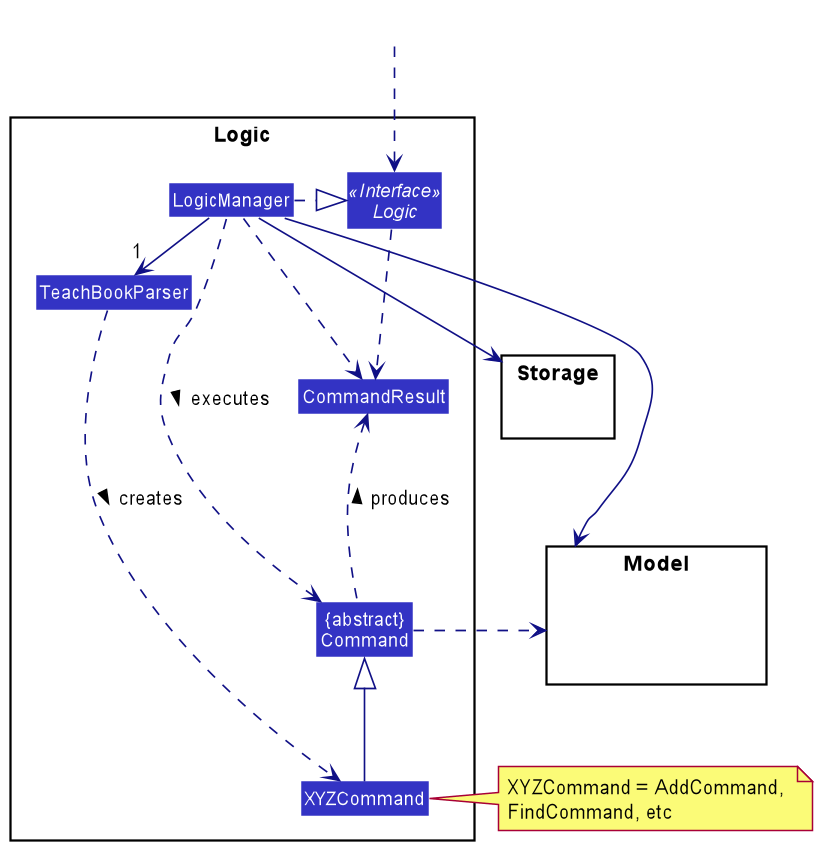
How the Logic component works:
- When
Logicis called upon to execute a command, it uses theTeachBookParserclass to parse the user command. - This results in a
Commandobject (more precisely, an object of one of its subclasses e.g.,AddCommand) which is executed by theLogicManager. - The command can communicate with the
Modelwhen it is executed (e.g. to add a student). - The result of the command execution is encapsulated as a
CommandResultobject which is returned fromLogic.
The Sequence Diagram below illustrates the interactions within the Logic component for the execute("delete 1") API call.
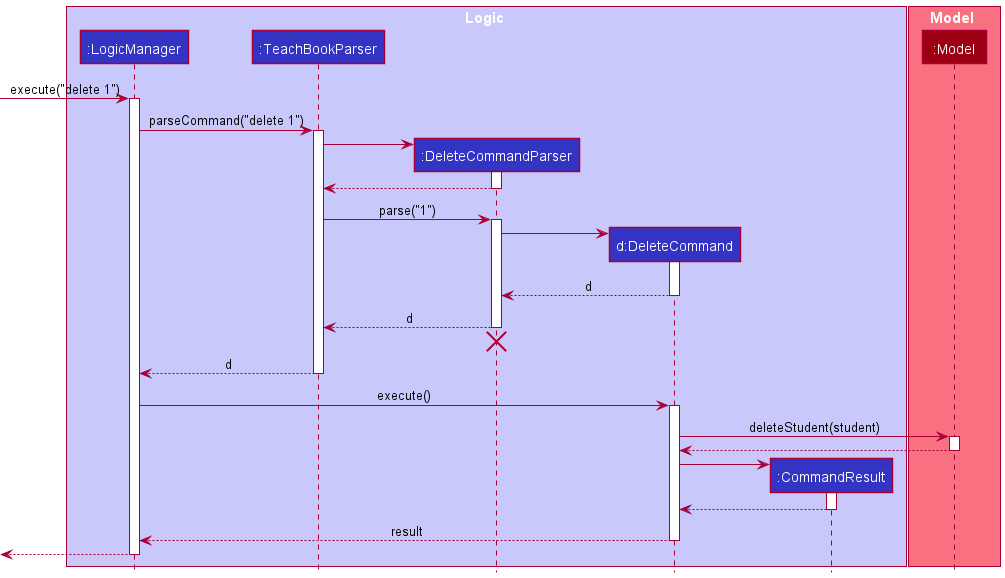
 Note: The lifeline for
 DeleteCommandParser should end at the destroy marker (X) but due to a limitation of PlantUML, the lifeline reaches the end of diagram.
Here are the other classes in Logic (omitted from the class diagram above) that are used for parsing a user command:
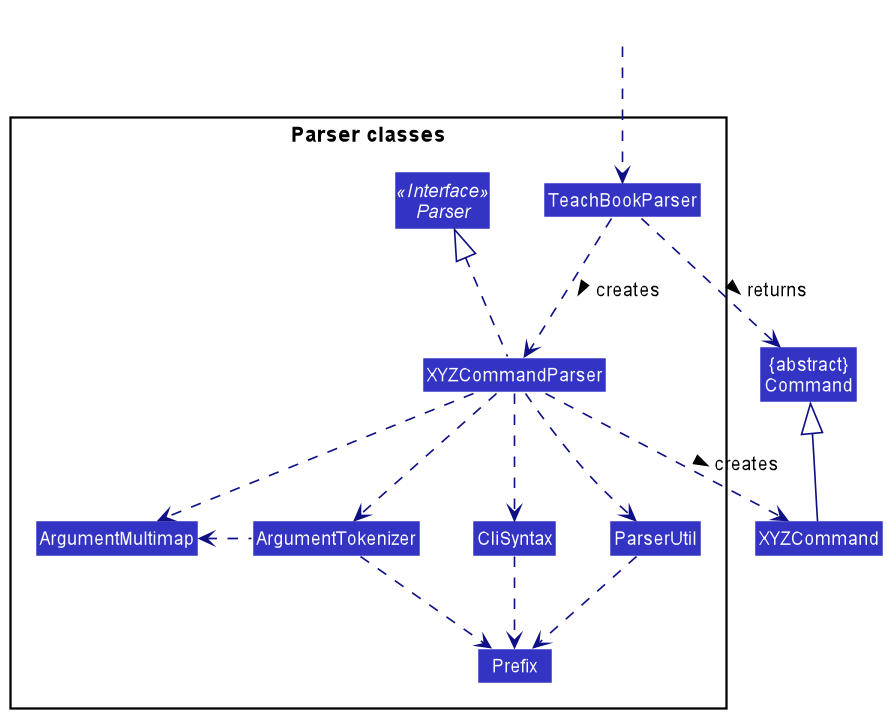
How the parsing works:
- When called upon to parse a user command, the
TeachBookParserclass creates anXYZCommandParser(XYZis a placeholder for the specific command name e.g.,AddCommandParser) which uses the other classes shown above to parse the user command and create aXYZCommandobject (e.g.,AddCommand) which theTeachBookParserreturns back as aCommandobject. - All
XYZCommandParserclasses (e.g.,AddCommandParser,DeleteCommandParser, …) inherit from theParserinterface so that they can be treated similarly where possible e.g, during testing.
Model component
API : Model.java
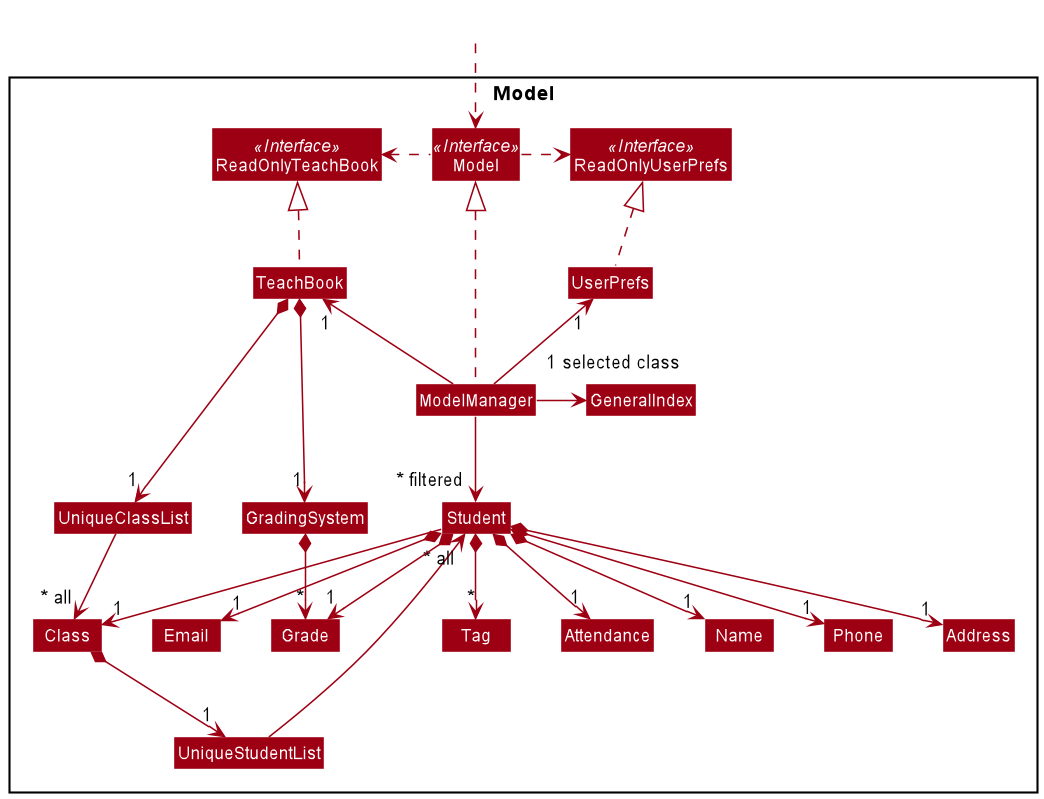
The Model component,
- stores TeachBook data i.e., all
Studentobjects (which are contained in aUniqueStudentListobject). - stores the currently ‘selected’
Studentobjects (e.g., results of a search query) as a separate filtered list which is exposed to outsiders as an unmodifiableObservableList<Student>that can be ‘observed’ e.g. the UI can be bound to this list so that the UI automatically updates when the data in the list change. - stores a
UserPrefobject that represents the user’s preferences. This is exposed to the outside as aReadOnlyUserPrefobjects. - does not depend on any of the other three components (as the
Modelrepresents data entities of the domain, they should make sense on their own without depending on other components).
Storage component
API : Storage.java
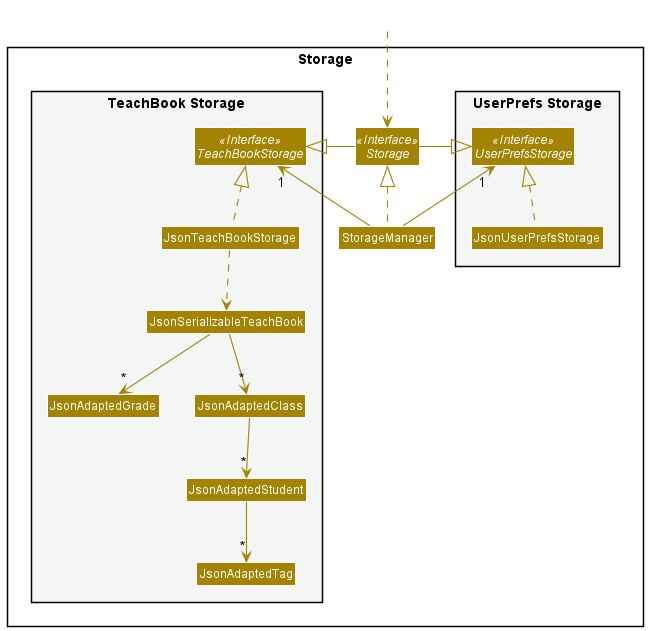
The Storage component,
- can save both TeachBook data and user preference data in json format, and read them back into corresponding objects.
- inherits from both
TeachBookStorageandUserPrefStorage, which means it can be treated as either one (if only the functionality of one is needed). - depends on some classes in the
Modelcomponent (because theStoragecomponent’s job is to save/retrieve objects that belong to theModel)
Common classes
Classes used by multiple components are in the seedu.teachbook.commons package.
Implementation
This section describes some noteworthy details on how certain features are implemented.
Integration of class feature
Design considerations
Aspect: Structure of the new model component
To integrate the new class feature into the existing AB3 product, we decided that each student object should have a reference to its class, and there should only be one class object for the same class. We considered and compared a few designs of the rest of the model component:
-
Alternative 1 (current choice):
TeachBookmaintains a list of all the classes. Each class maintains a list of all the students in that class. A unique student list containing all the students in all the classes is generated every time when users execute thelist allcommand.- Pros
- When adding/deleting students, we only need to add/delete ONCE using a class’s student list at most times.
- The filtered student list inside
ModelManagercan take the student list of the currently selected class as its source directly.
- Cons
- When
list all, we need to construct the unique student list by iterating through each class’s student list, which can degrade the performance of thelist allcommand.
- When
- Pros
-
Alternative 2:
TeachBookmaintains a list of all the classes. Each class maintains a list of all the students in that class.TeachBookalso maintains a unique student list containing all the students in all the classes.- Pros
- The filtered student list inside
ModelManagercan still take the student list of the currently selected class as its source directly. - When
list all, the filtered student list can also take the maintained unique student list as its source directly.
- The filtered student list inside
- Cons
- When adding/deleting students, we always need to add/delete TWICE. This means we need to modify both a class’s student list and the unique student list.
- If we simply add/delete students of the unique student list without maintaining a specific order of all the students, the list can look messy when
list all. We may still need to do a sorting by class whenlist all, which actually also degrades the performance oflist all.
- Pros
-
Alternative 3:
TeachBookonly maintains a unique student list containing all the students in all the classes.- Pros
- Easiest to implement and most components can be reused from AB3.
- When adding/deleting students, we only need to add/delete ONCE using the unique student list.
- Cons
- Similar to Alternative 2, there is still the need to maintain the order of students in the unique student list.
- We always need a predicate to screen out students of the currently selected class. Since users may interact with a specific class at most times, this can degrade the performance of most commands.
- Pros
Synchronization of Student List in Model and UI
To ensure synchronization throughout the program, ModelManager maintains a filteredStudents observable, which is
observed by MainWindow. filteredStudents contains the list of students to be displayed in the UI.
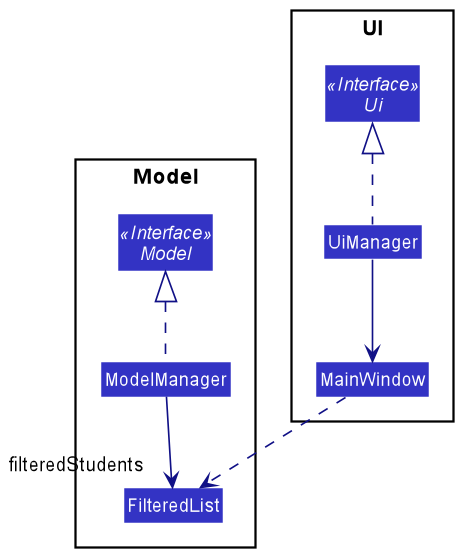
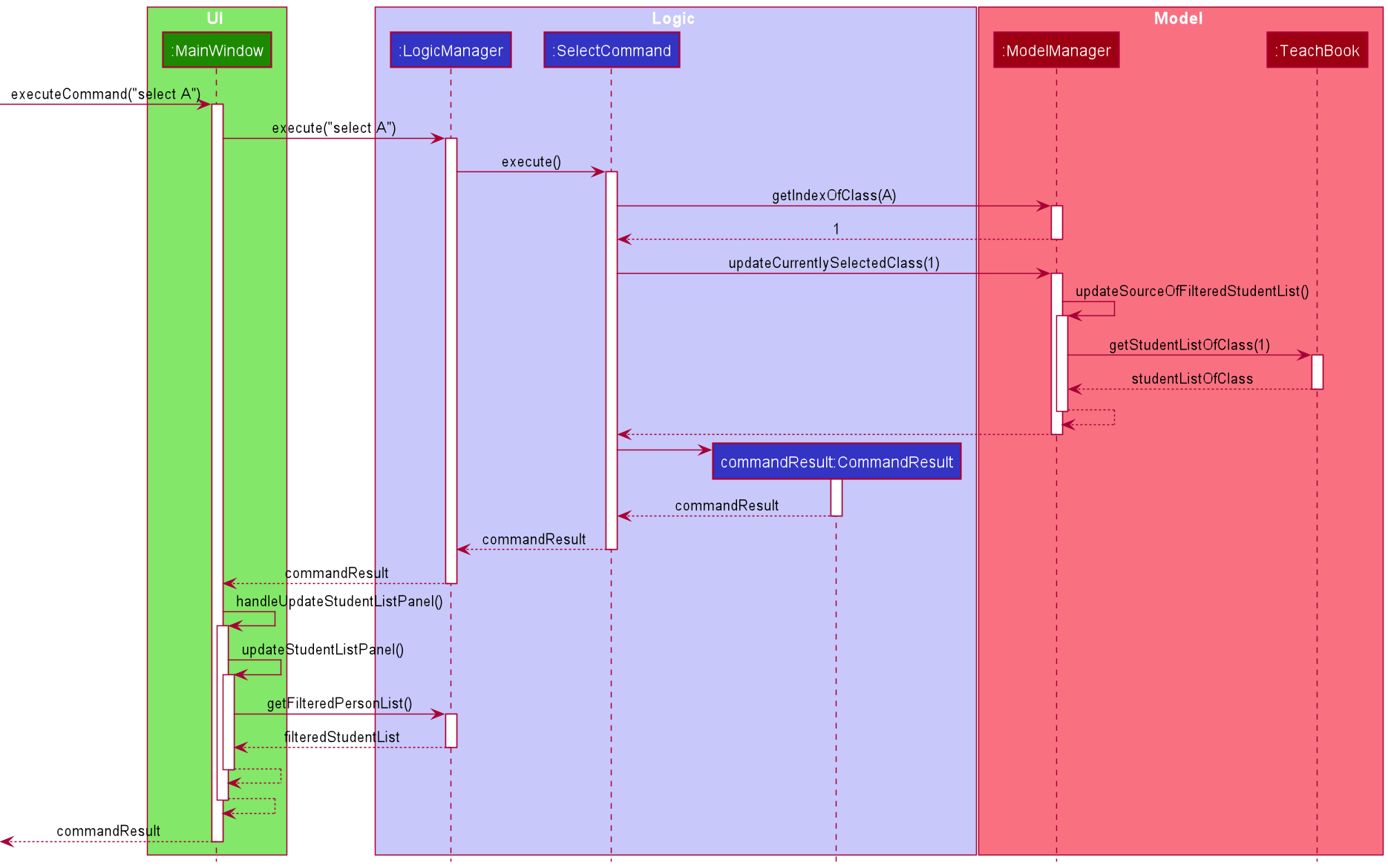
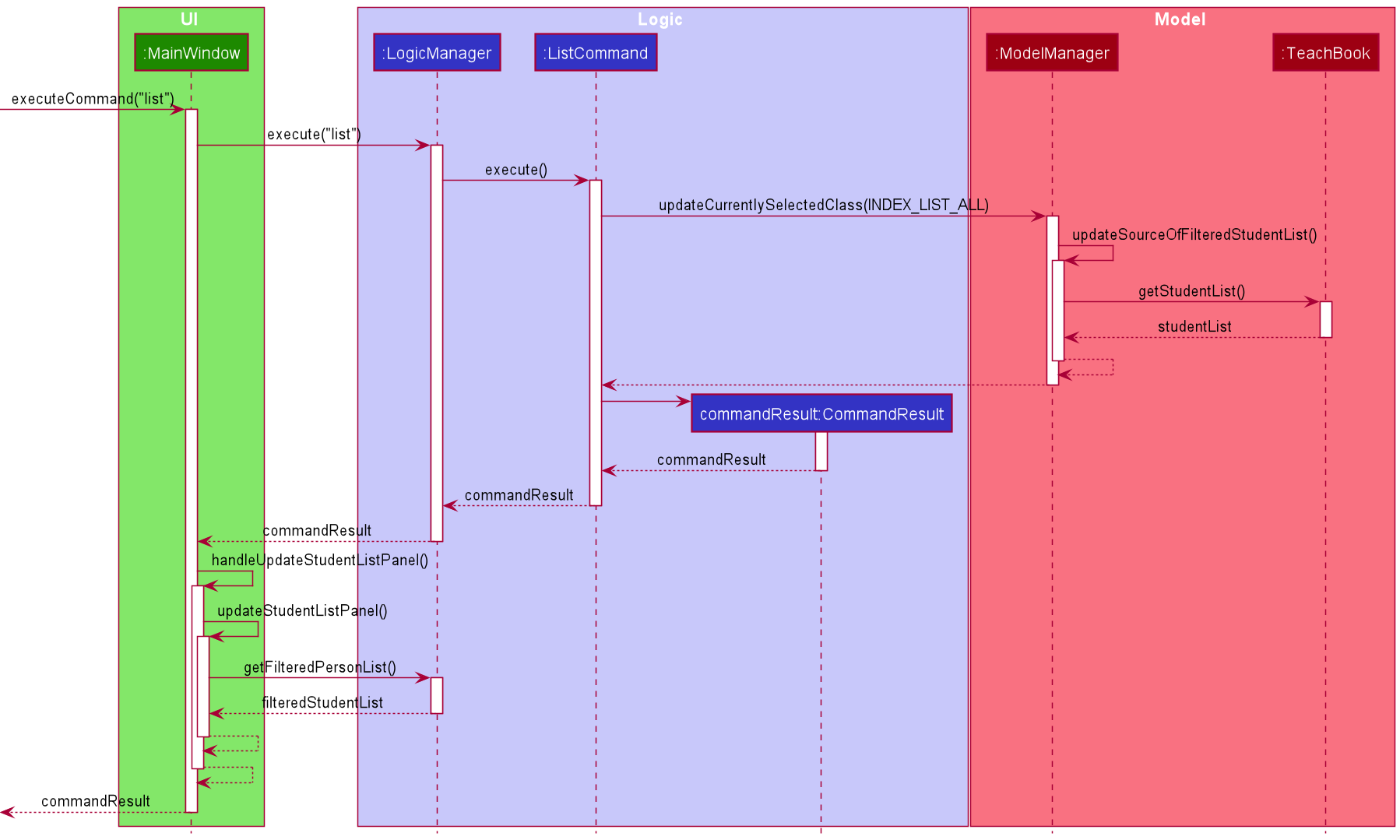
SelectCommand and ListCommand with the all option i.e., list all are the only two commands that will modify the
filteredStudents entirely, i.e., a new observable is created and replaces the existing observable, via
ModelManager#updateSourceOfFilteredStudentList(). However, this change is not observed by MainWindow as MainWindow
only observes changes within the observable, i.e., the previous filteredStudents observable, and not the changes to
the filteredStudents variable itself, which contains the observable. To mitigate this issue, the
updateStudentListPanel flag, in the commandResult returned after the execution of both SelectCommand and
ListCommand with the all option, is set to true. The flag then triggers the MainWindow to retrieve the new
filteredStudents observable via the MainWindow#updateStudentListPannel() and start observing changes in the new
observable. Thereafter, the student list in the UI is again in sync with the student list in the Model.
Below is the sequence diagram of the execution of the SelectCommand.
Below is the sequence diagram of the execution of the ListCommand with the all option.
Delete class feature
Implementation
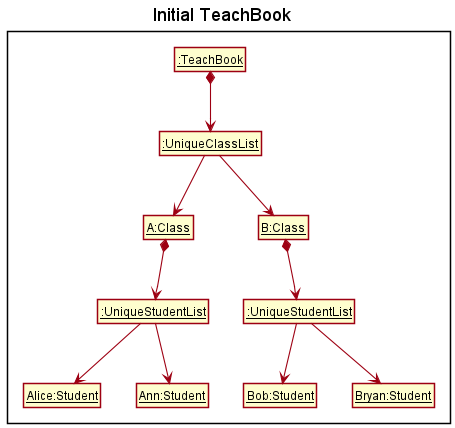
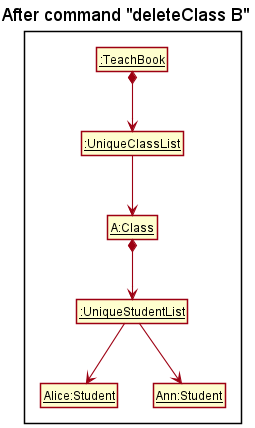
The delete class feature allows users to delete a class and all the students in the class from the TeachBook. This feature is facilitated by DeleteClassCommand and DeleteClassCommandParser.
Given below is an example usage scenario and how the delete class mechanism behaves.
The following object diagram shows an example initial state of the TeachBook:
The following sequence diagram shows interactions within the Logic component and part of the Model component for the deleteClass B command:
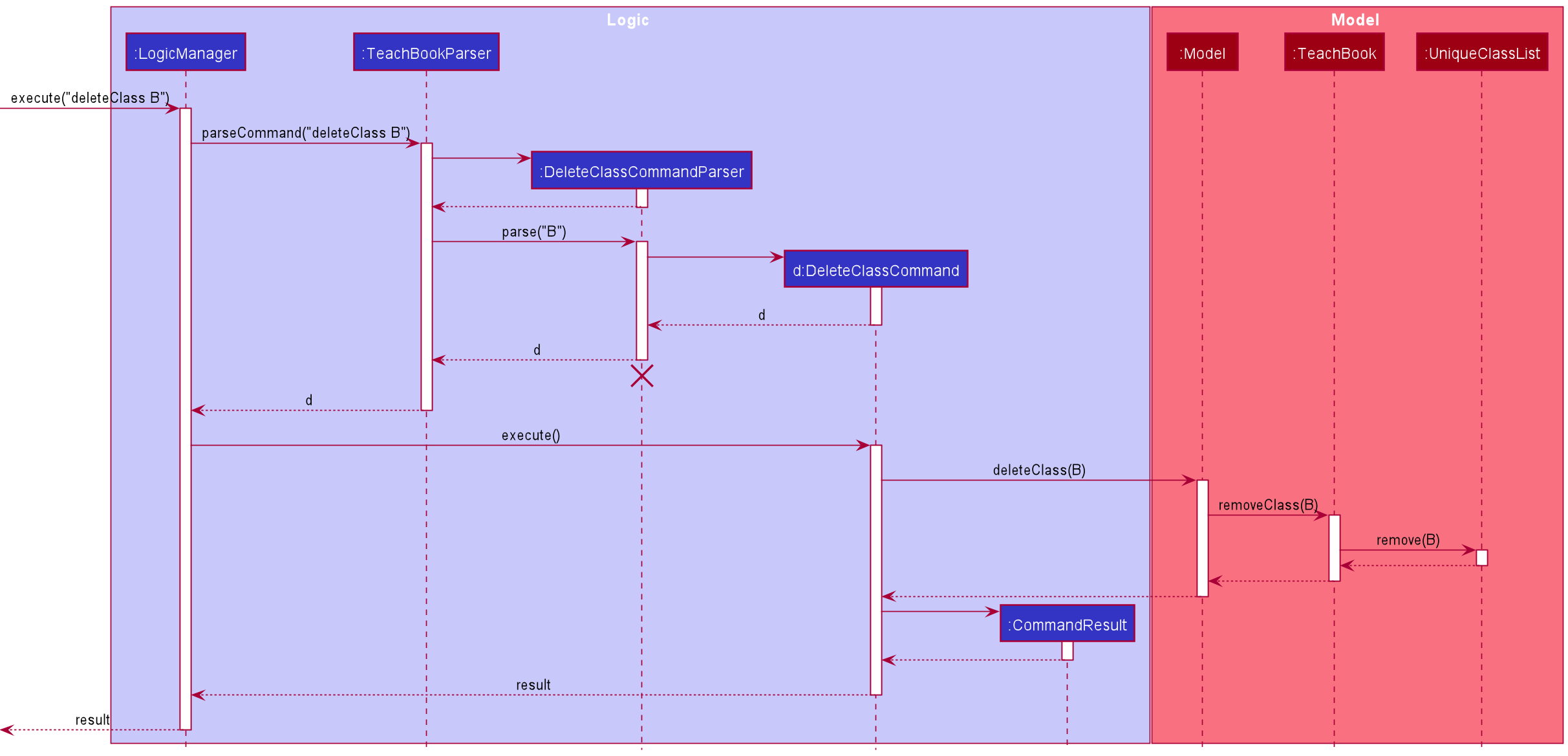
Note: The lifeline for DeleteClassCommandParser should end at the destroy marker (X) but due to a limitation of PlantUML, the lifeline reaches the end of diagram.
The following object diagram shows the updated TeachBook:
Edit feature
TeachBook allows users to edit students’ details after initially adding the students. However, a student’s class cannot be modified.
Implementation details
The edit command is implemented using EditCommand and EditCommandParser, along with TeachBookParser
and LogicManager which creates the required objects. Cases where the user enters an invalid input is handled with
exceptions along with corresponding error feedback to the user.
The edit command has the following format:
edit INDEX [n/NAME] [p/PHONE_NUMBER] [e/EMAIL] [a/ADDRESS] [t/TAG]...
Given below is the sequence diagram on how EditCommand behaves in TeachBook when the user tries to edit
the student’s name at index 1 of the current class to john:
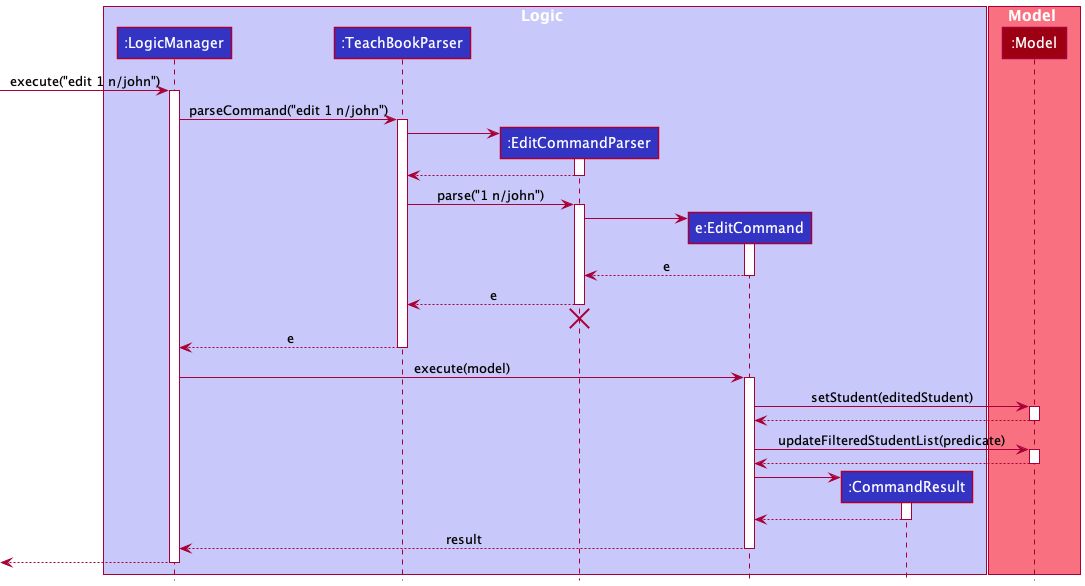
Note: The lifeline for EditCommandParser should end at the destroy marker (X) but due to a limitation of PlantUML, the lifeline reaches the end of diagram.
Given below is the activity diagram for the same scenario above:
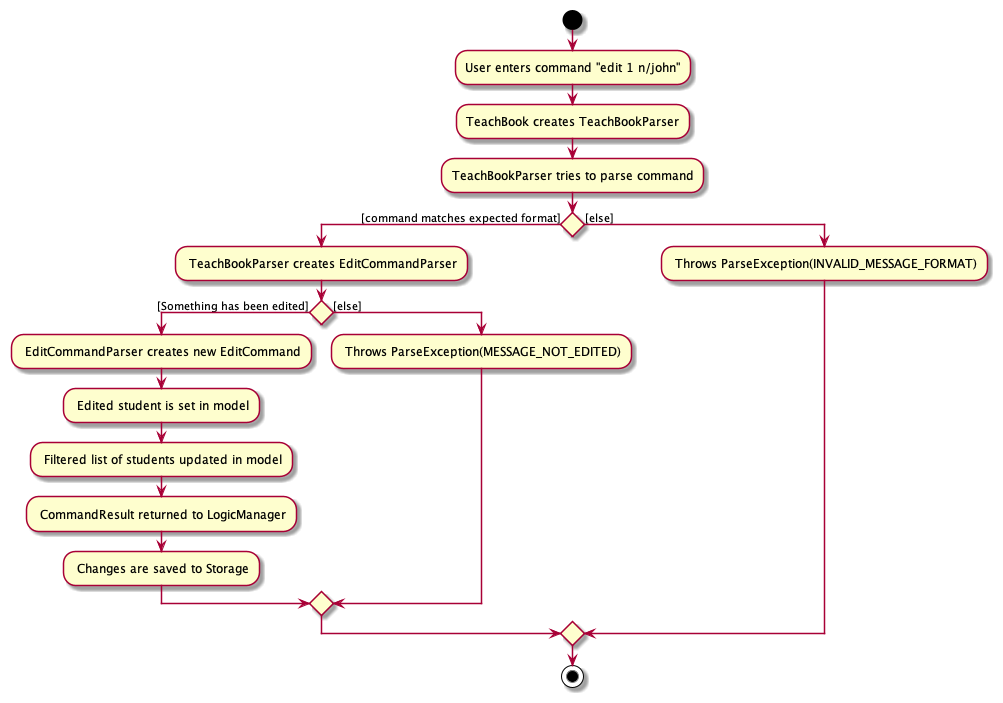
Filtering
Filtering is an essential feature to have when it comes to an application that stores data. This is because with filtering, users can access information with ease in the shortest time possible.
With reference to the discussion on
Synchronization of Student List in Model and UI earlier,
at any point of time, filteredStudents will contain either the list of all the students from the currently
selected class or the list of all the students from all the classes. By making filteredStudents a FilteredList<Student>,
filtering can be done easily to both the list of all the students from a class and the list of all the students from all the classes
by just passing in the corresponding Predicate<Student>. For example, FindCommand and ListCommand with the
absent option filter the filteredStudents via ModelManager#updateFilteredStudentList() by passing in the
NameContainsKeywordsPredicate and StudentIsAbsentPredicate respectively. To “clear” the filter on the other hand,
there is the ListCommand which utilizes the ModelManager#updateFilteredStudentList() as well but passing in
PREDICATE_SHOW_ALL_STUDENTS instead. Note that because filtering is done on the filteredStudent observable, the
changes will be observed by the MainWindow and the result of filtering will be reflected immediately in the UI.
Below is the sequence diagram of the execution of the FindCommand.
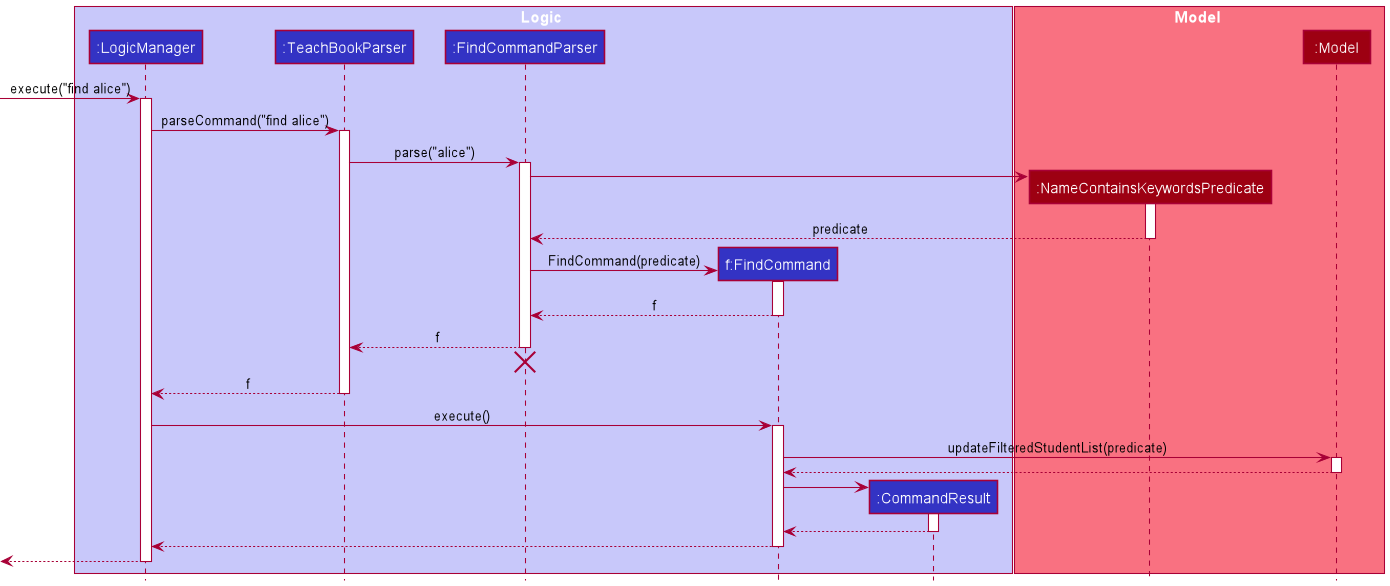
Note: The lifeline for FindCommandParser should end at the destroy marker (X) but due to a limitation of PlantUML, the lifeline reaches the end of diagram.
Below is the sequence diagram of the execution of the ListCommand with the absent option.
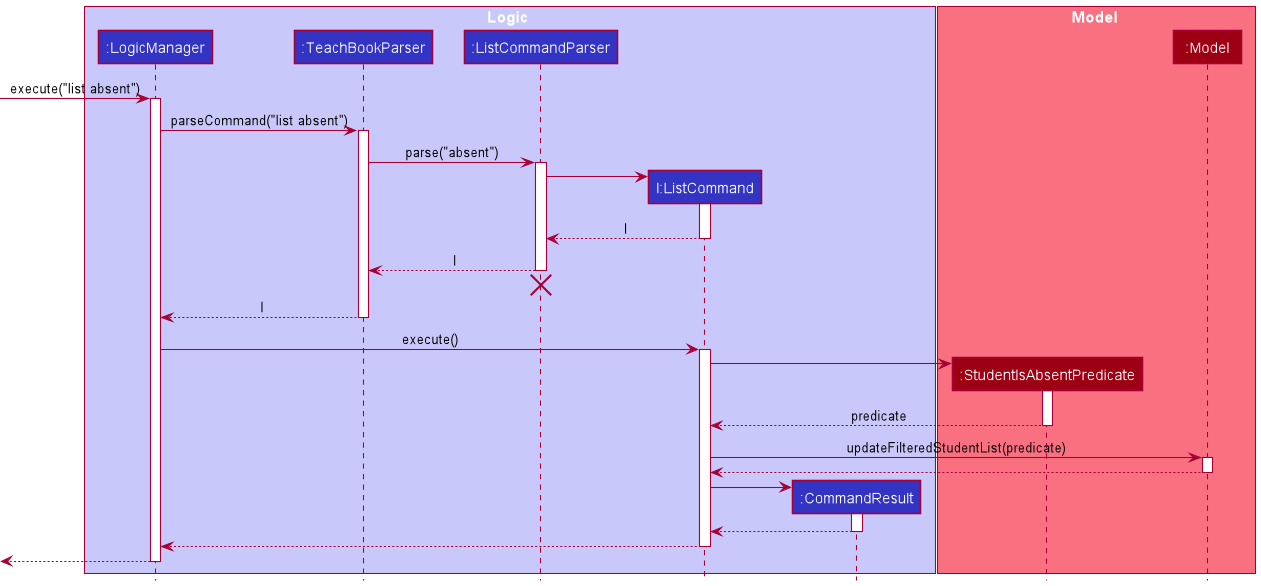
Note: The lifeline for ListCommandParser should end at the destroy marker (X) but due to a limitation of PlantUML, the lifeline reaches the end of diagram.
Below is the sequence diagram of the execution of the ListCommand.
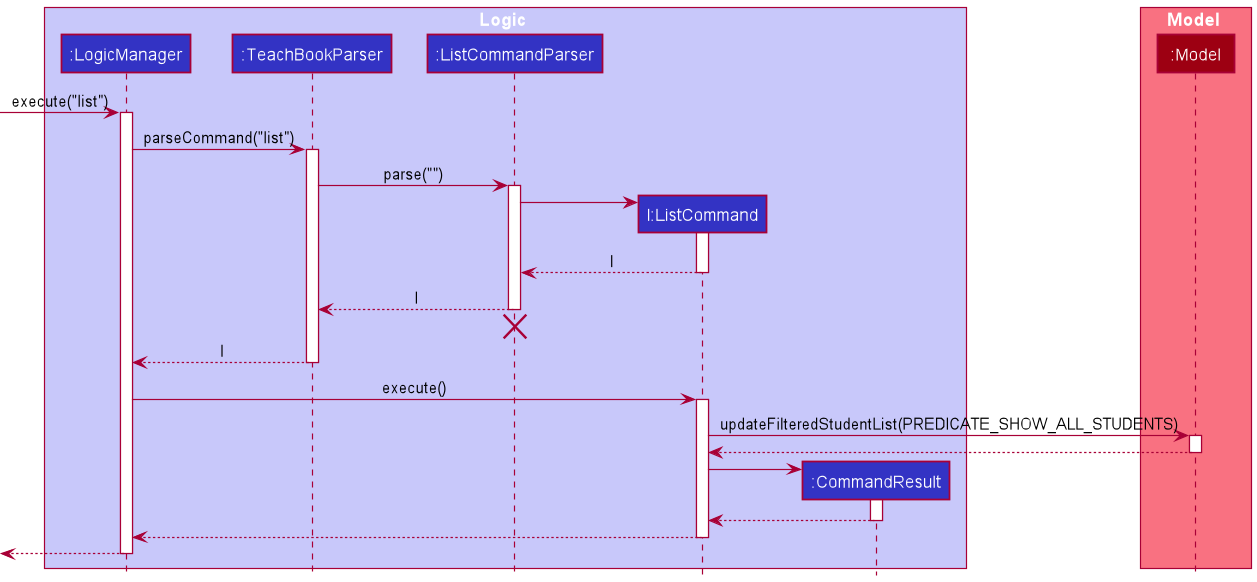
Note: The lifeline for ListCommandParser should end at the destroy marker (X) but due to a limitation of PlantUML, the lifeline reaches the end of diagram.
Add class feature
TeachBook allows users to add classes.
Implementation details
The addClass command is implemented using multiple classes. Firstly, when the user input addClass A, the LogicManager
will invoke the parseCommand of TeachBookParser to create a addClassCommandParse object. The parse method in
the AddClassCommandParser will be called to parse the inputs. It will create a class object named A and then return a
addClassCommand object. The returned addClassCommand then runs the execute() method which will in turn invoke the chain of
addClass(), addClass(), add() and add() command by the model, TeachBook, UniqueClassList and ObservableList classes
respectively.
The addClass command has the following format:
addClass CLASS_NAME
Given below is the sequence diagram on how addClass Command behaves in TeachBook when the user tries to add a class
named A.
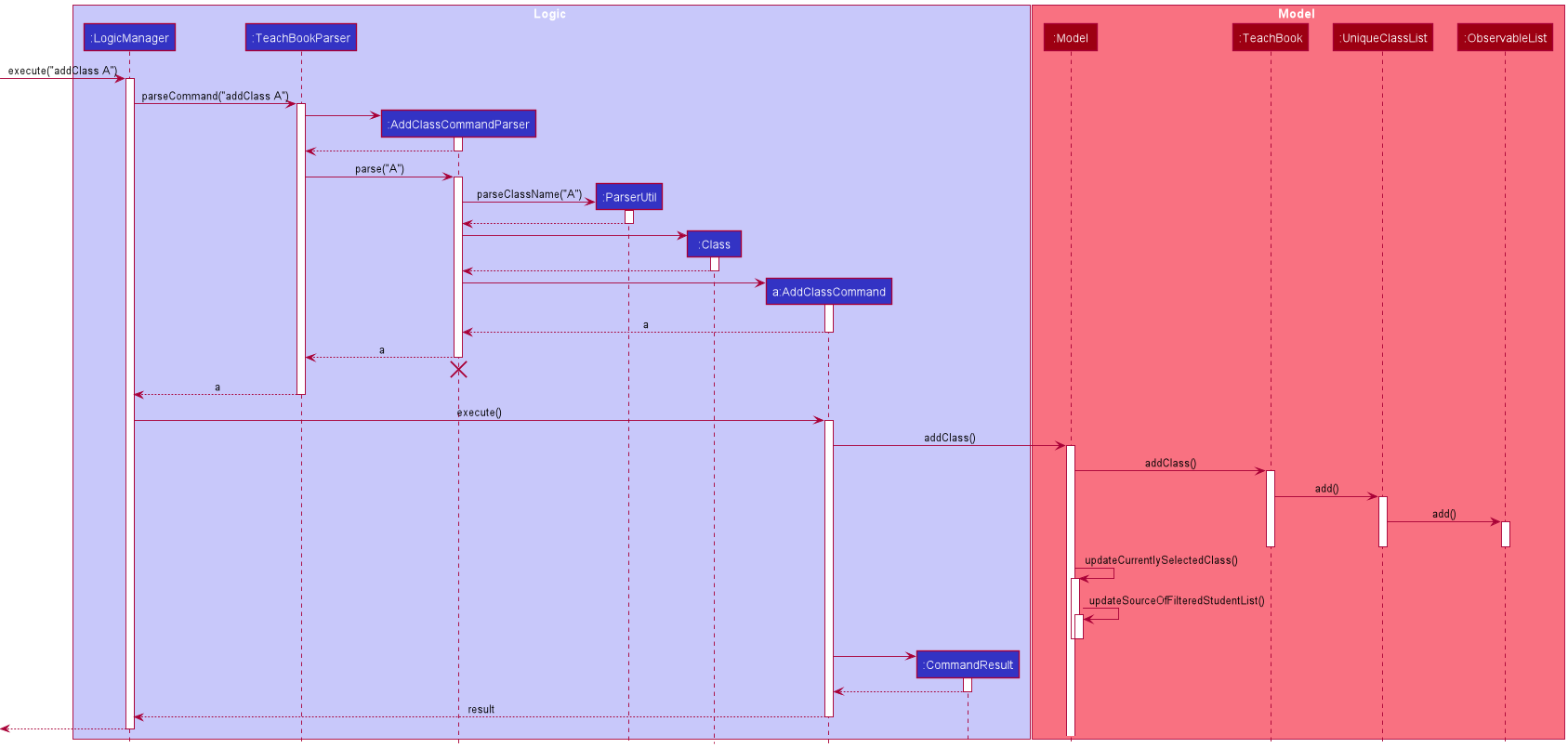
Note: The lifeline for AddClassCommandParser should end at the destroy marker (X) but due to a limitation of PlantUML, the lifeline reaches the end of diagram.
Undo/redo feature
Implementation
The undo/redo mechanism is facilitated by VersionedTeachBook. It extends TeachBook with an undo/redo history, each state is stored internally as an TeachbookDataState which consist of a TeachBook and TeachbookDisplayState. TeachbookDisplayState stored the filter predicate for the student list if any is applied and also the index of the selected class to be displayed.
The TeachbookDataState is stored in a TeachbookStateList with a currentStatePointer. Additionally, it implements the following operations:
-
VersionedTeachBook#commit()— Saves the current TeachBook state in its history. -
VersionedTeachBook#undo()— Restores the previous TeachBook state from its history. -
VersionedTeachBook#redo()— Restores a previously undone TeachBook state from its history.
These operations are exposed in the Model interface as Model#commitTeachBook(), Model#undoTeachBook() and Model#redoTeachBook() respectively.
Model#undoTeachBook() and Model#redoTeachBook() will return display settings to update the model accordingly.
Given below is an example usage scenario and how the undo/redo mechanism behaves at each step.
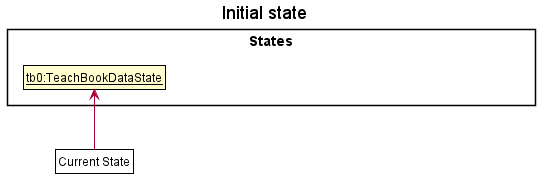
Step 1. The user launches the application for the first time. The VersionedTeachBook will be initialized with the initial TeachbookDataState, and the currentStatePointer pointing to that single TeachBook state.
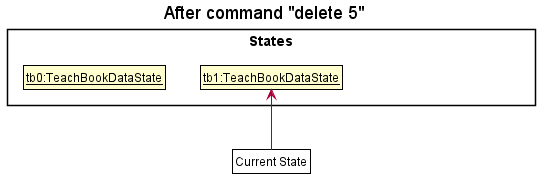
Step 2. The user executes delete 5 command to delete the 5th student in the Teachbook. The delete command calls Model#commitTeachBook(), causing the modified TeachbookDatastate after the delete 5 command executes to be saved in the teachBookStateList, and the currentStatePointer is shifted to the newly inserted TeachBook state.
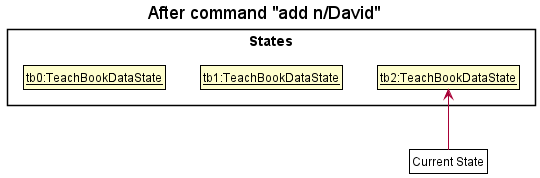
Step 3. The user executes add n/David ... to add a new student. The add command also calls Model#commitTeachBook(), causing another modified TeachbookDatastate to be saved into the teachBookStateList.
Note: If a command fails its execution, it will not call Model#commitTeachBook(), so the TeachBook state will not be saved into the teachBookStateList.
Step 4. The user now decides that adding the student was a mistake, and decides to undo that action by executing the undo command. The undo command will call Model#undoTeachBook(), which will shift the currentStatePointer once to the left, pointing it to the previous TeachBook state, and restores the Teachbook to that state.
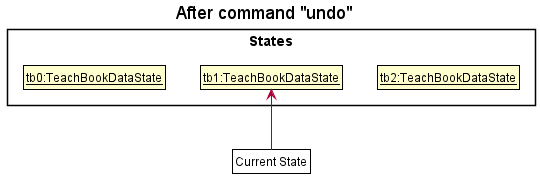
Note: If the currentStatePointer is at index 0, pointing to the initial TeachBook state, then there are no previous TeachBook states to restore. The undo command uses Model#canUndoTeachBook() to check if this is the case. If so, it will return an error to the user rather
than attempting to perform the undo.
The following sequence diagram shows how the undo operation works:
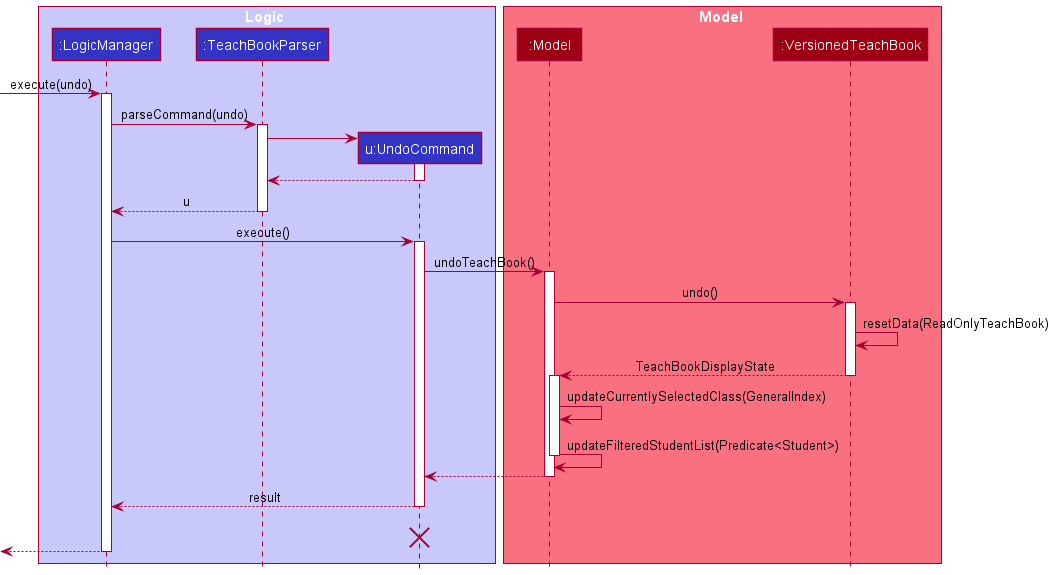
Note: The lifeline for UndoCommand should end at the destroy marker (X) but due to a limitation of PlantUML, the lifeline reaches the end of diagram.
The redo command does the opposite — it calls Model#redoTeachBook(), which shifts the currentStatePointer once to the right, pointing to the previously undone state, and restores the TeachBook to that state.
Note: If the currentStatePointer is at index teachBookStateList.size() - 1, pointing to the latest TeachBook state, then there are no undone TeachBook states to restore. The redo command uses Model#canRedoTeachBook() to check if this is the case. If so, it will return an error to the user rather than attempting to perform the redo.
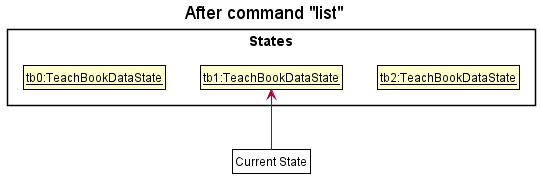
Step 5. The user then decides to execute the command list. Commands that do not modify the TeachBook, such as list, will usually not call Model#commitTeachBook(), Model#undoTeachBook() or Model#redoTeachBook(). Thus, the teachBookStateList remains unchanged.
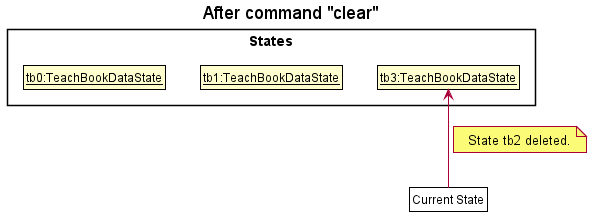
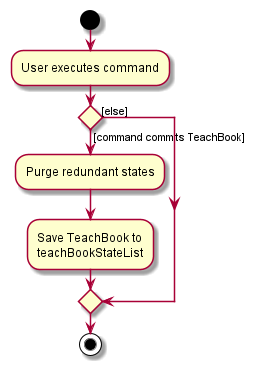
Step 6. The user executes clear, which calls Model#commitTeachBook(). Since the currentStatePointer is not pointing at the end of the teachBookStateList, all TeachBook states after the currentStatePointer will be purged. Reason: It no longer makes sense to redo the add n/David ... command. This is the behavior that most modern desktop applications follow.
The following activity diagram summarizes what happens when a user executes a new command:
Design considerations
Aspect: How undo & redo executes:
-
Alternative 1 (choice): Saves the entire TeachBook.
- Pros: Easy to implement.
- Cons: May have performance issues in terms of memory usage.
-
Alternative 2: Individual command knows how to undo/redo by
itself.
- Pros: Will use less memory (e.g. for
delete, just save the student being deleted). - Cons: We must ensure that the implementation of each individual command are correct.
- Pros: Will use less memory (e.g. for
Documentation, logging, testing, configuration, dev-ops
Appendix: Requirements
Product scope
Target user profile:
- is a primary or secondary school teacher
- has a need to manage multiple class worth of students’ contacts that she is teaching
- prefers desktop apps over other types
- is not proficient in IT but can type fast
- prefers typing to mouse interactions
- is reasonably comfortable using CLI apps
- wants to keep her personal contacts and students’ contacts separate
- wants to better take care of her students by storing some special notes (e.g. allergy condition) of her students somewhere
- wants to have an app to help with administrative work in teaching (e.g. taking attendance, keying in grades of students)
Value proposition: Manages contacts faster than a typical mouse/GUI driven app. Allows teachers to have a dedicated app to keep their work life separated from their personal life. Allows teachers to find students and their emergency information accurately and easily. Assists teachers with their day to day administrative work such as marking of attendance and grading.
User stories
Priorities: High (must have) - * * * , Medium (nice to have) - * * , Low (unlikely to have) - *
| Priority | As a … | I want to … | So that I can … |
|---|---|---|---|
* * * |
new user | get instructions | refer to instructions when I forget how to use the TeachBook |
* * * |
teacher | add the students I teach | keep track of my students’ contact |
* * * |
teacher | remove students from my contacts | remove specific students who are no longer take my classes |
* * * |
teacher | search for my students in my contacts by name | get a student’s information easily |
* * * |
teacher | view my student’s information | contact them easily |
* * * |
teacher | separate my students by classes | better sort my contacts & not mix up students with similar names but from different classes |
* * |
teacher | modify contacts | change information easily rather than creating a new contact to replace the previous one |
* * |
teacher with students whom require special attention | add important information about my students such as diet, allergies or health conditions | quickly react to any emergency related to these information |
* * |
teacher | set a special grading system | customize my grading system just in case it changes in the future |
* * |
teacher | reset the grading system | remove any outdated grading system |
* * |
teacher | easily store the grades of my students | remember how well each student is doing in my classes |
* * |
teacher | sort my students by grade | quickly find out groups of students which require more help |
* * |
teacher | delete a class with its data all at once | quickly remove the class I have stopped teaching |
* * |
teacher | clear the TeachBook data all at once | get a fresh TeachBook at the start of the year |
* * |
teacher | filter my students using keywords | quickly list out specific students |
* * |
teacher | undo the most recent command | revert any mistakes I make quickly |
* * |
teacher | redo the most recent undo | redo any accidental undos |
* * |
teacher | view the number of students in each class | prepare sufficient material for each class |
* * |
teacher | mark attendance for my students | remember if they attended my classes |
* * |
teacher | mark attendance for all my students | quickly mark attendance if all the students are present |
* * |
teacher | mark students as absent | correct any attendance mistakes |
* * |
teacher | mark all the students as absent | start marking attendance at the start of the day |
* |
teacher | modify class names | edit the class name in case of mistakes |
* |
teacher | set special tags for my students | tag my students with extra information |
* |
teacher | print out a list of students only containing names | do any administrative work that requires a hard copy document |
* |
teacher | print out a list of students with extra information related to the students | do not have to manually input all the information |
* |
teacher | view the list of all the students | have an overview of all my students |
* |
teacher | add all the students from a class at once | quickly add the information of the students in each class |
* |
teacher | archive my TeachBook data | start over with a clean slate and can retrieve records I need in the future |
* |
teacher | able to load a different TeachBook data to my TeachBook | easily transfer any data from one device to another |
Use cases
(For all use cases below, the System is the TeachBook and the Actor is the user, unless specified otherwise)
Use case: UC01 - Add class
MSS:
- User requests to add a class.
-
TeachBook adds the class.
Use case ends.
Extensions:
- 1a. Class name is not provided.
-
1a1. TeachBook shows an error message.
Use case ends.
-
- 1b. The given class name is invalid.
-
1b1. TeachBook shows an error message.
Use case ends.
-
- 1c. There is an existing class with the given class name.
-
1c1. TeachBook shows an error message.
Use case ends.
-
Use case: UC02 - Delete class
MSS:
- User requests to delete a class.
-
TeachBook deletes the class.
Use case ends.
Extensions:
- 1a. Class name is not provided.
-
1a1. TeachBook shows an error message.
Use case ends.
-
- 1b. The specified class does not exist.
-
1b1. TeachBook shows an error message.
Use case ends.
-
Use case: UC03 - Edit class name
MSS:
- User requests to edit the name of the currently selected class.
-
TeachBook edits the class name.
Use case ends.
Extensions:
- 1a. There is no currently selected class.
-
1a1. TeachBook shows an error message.
Use case ends.
-
- 1b. No new class name is provided.
-
1b1. TeachBook shows an error message.
Use case ends.
-
- 1c. The given new class name is invalid.
-
1c1. TeachBook shows an error message.
Use case ends.
-
- 1d. There is an existing class with the given new class name.
-
1d1. TeachBook shows an error message.
Use case ends.
-
Use case: UC04 - Select a class
MSS:
- User requests to select a class.
-
TeachBook selects the class.
Use case ends.
Extensions:
- 1a. The specified class does not exist.
-
1a1. TeachBook shows an error message.
Use case ends.
-
- 1b. The specified class is already selected.
-
1b1. TeachBook shows an error message.
Use case ends.
-
Use case: UC05 - Add student
MSS:
- User requests to add a student to the currently selected class.
-
TeachBook adds the student.
Use case ends.
Extensions:
- 1a. There is no currently selected class.
-
1a1. TeachBook shows an error message.
Use case ends.
-
- 1b. Student name is not provided.
-
1b1. TeachBook shows an error message.
Use case ends.
-
- 1c. There is an existing student with the same name in the class.
-
1c1. TeachBook shows an error message.
Use case ends.
-
- 1d. Any given student information is invalid.
-
1d1. TeachBook shows an error message.
Use case ends.
-
Use case: UC06 - Delete one or more students
MSS:
- User requests to delete one or more specific students.
-
TeachBook deletes the students.
Use case ends.
Extensions:
- 1a. One or more specified students do not exist.
-
1a1. TeachBook shows an error message.
Use case ends.
-
Use case: UC07 - Delete all the students in the filtered student list
MSS:
- User requests to delete all the students in the filtered student list.
-
TeachBook deletes the students.
Use case ends.
Extensions:
- 1a. The filtered student list is empty.
-
1a1. TeachBook shows an error message.
Use case ends.
-
Use case: UC08 - Edit student
MSS:
- User requests to edit a student.
-
TeachBook edits the student.
Use case ends.
Extensions:
- 1a. The specified student does not exist.
-
1a1. TeachBook shows an error message.
Use case ends.
-
- 1b. No fields are provided.
-
1b1. TeachBook shows an error message.
Use case ends.
-
- 1c. There is an existing student with the given new student name.
-
1c1. TeachBook shows an error message.
Use case ends.
-
- 1d. Any given student information is invalid.
-
1d1. TeachBook shows an error message.
Use case ends.
-
Use case: UC09 - Give remark to a student
MSS:
- User requests to give a remark to a student.
-
TeachBook overwrites any existing remark of the student with the given remark.
Use case ends.
Extensions:
- 1a. The specified student does not exist.
-
1a1. TeachBook shows an error message.
Use case ends.
-
- 1b. The given remark is empty.
-
1b1. TeachBook clears any existing remark of the student.
Use case ends.
-
Use case: UC10 - Find students by name keywords
MSS:
- User requests to find students by name keywords.
-
TeachBook shows a list of students whose name contains at least one of the keywords.
Use case ends.
Use case: UC11 - View all the students from the currently selected class
Preconditions: There is a currently selected class.
MSS:
- User requests to view all the students from the currently selected class.
-
TeachBook shows all the students in the class.
Use case ends.
Use case: UC12 - View all the students from a class
MSS:
- User selects a class (UC04).
-
User views all the students from the currently selected class (UC11).
Use case ends.
Use case: UC13 - View students from all the classes
MSS:
- User requests to view students from all the classes.
-
TeachBook shows students from all the classes.
Use case ends.
Use case: UC14 - View all absent students from the current student list
MSS:
- User requests to view absent students from the class.
-
TeachBook shows a list of absent students from the class.
Use case ends.
Use case: UC15 - View absent students from a class
MSS:
- User selects a class (UC04).
-
User views all absent students from the current student list (UC14).
Use case ends.
Use case: UC16 - View absent students from all the classes
MSS:
- User views students from all the classes (UC13).
-
User views all absent students from the current student list (UC14).
Use case ends.
Use case: UC17 - Mark one or more students as present
MSS:
- User requests to mark one or more students as present.
-
TeachBook marks the students as present.
Use case ends.
Extensions:
- 1a. One or more specified students do not exist.
-
1a1. TeachBook shows an error message.
Use case ends.
-
Use case: UC18 - Mark all the students in the filtered student list as present
MSS:
- User requests to mark all the students in the filtered student list as present.
-
TeachBook marks the students as present.
Use case ends.
Extensions:
- 1a. The filtered student list is empty.
-
1a1. TeachBook shows an error message.
Use case ends.
-
Use case: UC19 - Mark one or more students as absent
MSS:
- User requests to mark one or more students as absent.
-
TeachBook marks the students as absent.
Use case ends.
Extensions:
- 1a. One or more specified students do not exist.
-
1a1. TeachBook shows an error message.
Use case ends.
-
Use case: UC20 - Mark all the students in the filtered student list as absent
MSS:
- User requests to mark all the students in the filtered student list as absent.
-
TeachBook marks the students as absent.
Use case ends.
Extensions:
- 1a. The filtered student list is empty.
-
1a1. TeachBook shows an error message.
Use case ends.
-
Use case: UC21 - Set a grading system
MSS:
- User requests to set a grading system.
-
TeachBook sets the grading system.
Use case ends.
Extensions:
- 1a. A grading system is currently in use in TeachBook.
-
1a1. TeachBook shows an error message.
Use case ends.
-
Use case: UC22 - Reset grading system
MSS:
- User requests to reset the existing grading system.
- TeachBook resets the grading system.
Extensions:
- 1a. There is no grading system in use in TeachBook.
-
1a1. TeachBook shows an error message.
Use case ends.
-
Use case: UC23 - Give grade to one or more students
MSS:
- User requests to give a grade to one or more students.
- TeachBook gives the specified grade to the students.
Extensions:
- 1a. There is no grading system in use in TeachBook.
-
1a1. TeachBook shows an error message.
Use case ends.
-
- 1b. The specified grade is invalid.
-
1b1. TeachBook shows an error message.
Use case ends.
-
- 1c. One or more specified students do not exist.
-
1c1. TeachBook shows an error message.
Use case ends.
-
Use case: UC24 - Give grade to all the students in the filtered student list
MSS:
- User requests to give a grade to all the students in the filtered student list.
- TeachBook gives the specified grade to the students.
Extensions:
- 1a. There is no grading system in use in TeachBook.
-
1a1. TeachBook shows an error message.
Use case ends.
-
- 1b. The specified grade is invalid.
-
1b1. TeachBook shows an error message.
Use case ends.
-
- 1c. The filtered student list is empty.
-
1c1. TeachBook shows an error message.
Use case ends.
-
Use case: UC25 - Sort students according to grade
MSS:
- User requests to sort the students according to their grade.
-
TeachBook sorts the students according to their grade.
Use case ends.
Extensions:
- 1a. There is no grading system in use in TeachBook.
-
1a1. TeachBook shows an error message.
Use case ends.
-
Use case: UC26 - Sort students according to name
MSS:
- User requests to sort the students according to their name.
- TeachBook sorts the students according to their name.
Use case: UC27 - Generate an Excel sheet containing information of students in the filtered student list
MSS:
- User requests to generate an Excel sheet containing information of students in the filtered student list.
-
TeachBook generates the Excel sheet and stored the file in the
downloadsfolder of user’s device.Use case ends.
Extensions:
- 1a. User does not have Excel installed on the device.
-
1a1. TeachBook shows an error message.
Use case ends.
-
- 1b. User does not have a
downloadsfolder on the device.-
1b1. TeachBook shows an error message.
Use case ends.
-
- 1c. The app does not have permission to write to the
downloadsfolder.-
1c1. TeachBook shows an error message.
Use case ends.
-
Use case: UC28 - Undo a command
MSS:
- User requests to undo a recent command.
-
TeachBook shows the exact state before the command that is being undone was executed.
Use case ends.
Extensions:
- 1a. There is no commands to undo.
-
1a1. TeachBook shows an error message.
Use case ends.
-
Use case: UC29 - Redo a command
MSS:
- User requests to redo a recently undone command.
-
TeachBook shows the exact state before the previous undo command was executed.
Use case ends.
Extensions:
- 1a. There is no commands to redo.
-
1a1. TeachBook shows an error message.
Use case ends.
-
Use case: UC30 - Clear
MSS:
- User requests to clear all the data inside TeachBook.
-
TeachBook clears all the data.
Use case ends.
Use case: UC31 - Help
MSS:
- User requests for a guide.
-
TeachBook shows a link to the TeachBook User Guide.
Use case ends.
Use case: UC32 - Exit
MSS:
- User requests to exit TeachBook.
-
TeachBook exits.
Use case ends.
Non-Functional Requirements
- The app should work on any mainstream OS as long as it has Java
11or above installed. - The app should be able to hold up to 30 classes and 200 students in each class without long time lags in performance (being able to respond to any command within 4 seconds) for typical usage.
- A new user should be able to understand and use all the commands within two days with the help of the User Guide.
- A user with above average typing speed for regular English text (i.e. not code, not system admin commands) should be able to accomplish most of the tasks faster using commands than using the mouse.
- User data of an app should be kept only on the device installed the app.
- User data should not be lost or corrupted when the app is closed unexpectedly.
Glossary
- Class list panel: The panel on the UI that displays the list of classes in TeachBook to the user
- CLI: Command Lind Interface
- Current student list A list containing either all the students from the currently selected class if there is a currently selected class, or all the students from all the classes if there is no currently selected class.
- Currently selected class: The class that is currently being highlighted on the class list panel. Some commands will act on the currently selected class such as addStudent
- Filtered student list: The list of students that is currently being displayed on the student list panel
- Grading system: A particular scale that schools use for evaluating the performance of students in exams (e.g. A, B, C, E and F)
- GUI: Graphical User Interface
- Mainstream OS: Windows, Linux, Unix, OS-X
- Student list panel: The panel on the UI that displays a list of students to the user
Appendix: Instructions for manual testing
Given below are instructions to test the app manually.
Note: These instructions only provide a starting point for testers to work on;
testers are expected to do more exploratory testing.
Adding a student
-
Adding a student in a class.
- Prerequisites: A class must already be selected. You can know which class is being selected by looking at which class is being highlighted. If none is being selected, you can use the
selectcommand or if there is no class in the class list, you can add a new class using theaddClasscommand. - Test case:
add n/John p/91234567 e/john@example.com a/21 Lower Kent Ridge Road, Singapore 119077 t/class monitor
Expected: A student namedJohnwith phone number91234567, emailJohn@gmail.com, address21 Lower Kent Ridge Road, Singapore 119077and tagclass monitorwill be added. - Test case:
add n/Janice
Expected: A student namedJanicewithout other information will be added as additional information are optional. - Test case:
add n/Janice
wherejanicealready exist in the student list. Expected: Error details are shown in the status message that the student already exists in the class. - Test case:
add p/91234567
Expected: Error details are shown in the status message that command format is invalid because information on student’s name is compulsory. - Test case:
add
Expected: Similar to previous.
- Prerequisites: A class must already be selected. You can know which class is being selected by looking at which class is being highlighted. If none is being selected, you can use the
Editing a student
-
Editing a student from list of students.
- Prerequisites: List students in the currently selected class using
listcommand or list all the students in TeachBook usinglist allcommand. - Test case:
edit 1 n/Jane p/1234
Expected: First student in the list is being edited. Name of the student is changed toJaneand phone number of the student is changed to1234 - Test case:
edit 1
Expected: No student is edited. Error details shown in the status message that at least one field has to be specified for edit. - Other incorrect edit commands to try:
edit,edit nothingedit /nJane /p1234
Expected: Similar to previous test case.
- Prerequisites: List students in the currently selected class using
Giving remark to a student
-
Giving remark to a student while all the students are being shown.
- Prerequisites: List all the students using the
listcommand. There are two and only two students in the student list. - Test case:
remark 1 r/Allergic to seafood.
Expected: First student in the list has the remarkAllergic to seafood.. - Test case:
remark 1 r/
Expected: First student has no remark. - Test case:
remark 30 r/
Expected: No student’s remark field is changed. Error details shown in the status message. - Other incorrect
remarkcommands to try:remark,remark 1,remark r/,remark 0 r/new,remark 1 2 r/new,remark hello r/new
Expected: Similar to previous.
- Prerequisites: List all the students using the
Deleting students
-
Deleting one or more students while all the students are being shown.
- Prerequisites: List all the students using the
listcommand. There are three and only three students in the student list. - Test case:
delete 1
Expected: First student is deleted from the list. Details of the deleted student shown in the status message. - Test case:
delete 01
Expected: Similar to previous. - Test case:
delete 1 2
Expected: First and second students are deleted from the list. Details of the deleted students shown in the status message. - Test case:
delete all
Expected: All three students are deleted from the list. Details of the deleted students shown in the status message. - Test case:
delete 0
Expected: No student is deleted. Error details shown in the status message. - Test case:
delete 0 1 2
Expected: Similar to previous. - Other incorrect
deletecommands to try:delete,delete hello world,delete all all,delete 5,delete 1 2 all,delete -1
Expected: Similar to previous.
- Prerequisites: List all the students using the
Finding students
-
Finding a students or multiple students.
- Prerequisites: 2 students named James Doe and Jane Doe in the list.
- Test case:
find James
Expected: Shows the information of James Doe. - Test case:
find Jane
Expected: Shows the information of Jane Doe. - Test case:
find jane
Expected: Same as previous. - Test case:
find Ja
Expected: Shows nothing because there is no partial match feature. - Test case:
find Doe
Expected: Shows both James Doe and Jane Doe. - Test case:
find Janice
Expected: Shows nothing because Janice is not in the list. - Test case:
find
Expected: Error details shown in the status message that the command format is invalid as a keyword is required.
Adding a class
-
Adding a class.
- Test case:
addClass 4E1where 4E1 is the name of the class to be added into list.
Expected: Class 4E1 is added into the list. - Test case:
addClass 4E1where 4E1 is the name of the class that is already added in the list.
Expected: No class is added. Error details shown in the status message that the class already exist in the TeachBook. - Test case:
addClass
Expected: No class is added. Error details shown in the status message that the command format is invalid as class name is compulsory.
- Test case:
Deleting a class
-
Deleting a class.
- Prerequisites: Multiple classes in the list.
- Test case:
deleteClass 4E1where 4E1 is in the list.
Expected: Class 4E1 is deleted from the list. Details of the deleted class shown in the status message. - Test case:
deleteClass 4E1where 4E1 is not in the list.
Expected: No class is deleted. Error details shown in the status message. - Test case:
deleteClass
Expected: Similar to previous.
Editing name of the class
-
Editing the name of the currently selected class.
- Prerequisites: A class, other than
4E1, has to be selected using theselectcommand. - Test case:
editClass 4E1
Expected: Name of the currently selected class will change to4E1. No changes will be made to existing students in the class. - Test case:
editClass 4E1followed byeditClass 4E1
Expected: Error details are shown in the status message that the class already exists in the TeachBook. - Test case:
editClass
Expected: Error details are shown in the status message that the CLASS_NAME parameter is missing.
- Prerequisites: A class, other than
Selecting a class
-
Selecting a class.
- Prerequisites: There is a class named
Ain the TeachBook. There is no class namedMin the TeachBook. - Test case:
select Awhen classAis not selected.
Expected: Class namedAis highlighted in class list panel. Student list of classAis shown in student list panel. - Test case:
select Awhen classAis already selected.
Expected: Nothing changes in class list panel and student list panel. Error details shown in the status message. - Test case:
select M
Expected: Similar to previous. - Test case:
select
Expected: Similar to previous.
- Prerequisites: There is a class named
Setting a grading system in TeachBook
-
Setting a grading system in TeachBook when there is no grading system present.
- Prerequisites: There has to be no existing grading system present in TeachBook.
- Test case:
setGrade A>B>C>D>E
Expected: Grading system is set for TeachBook in descending order from the highest gradeAto the lowest gradeE. - Test case:
setGrade A
Expected: Grading system is set for TeachBook with a single gradeA - Test case:
setGrade
Expected: Error details are shown in the status message that the grade parameter is missing.
-
Setting a grading system in TeachBook when there is an existing grading system.
- Prerequisites: There is an existing grading system in TeachBook.
- Test case:
setGrade A>B>C>D>E
Expected: Error details are shown in the status message that there is already an existing grading system. - Test case:
setGrade
Expected: Error details are shown in the status message that the grade parameter is missing.
Resetting a grading system in TeachBook
-
Resetting a grading system in TeachBook when there is an existing grading system.
- Prerequisites: There is an existing grading system in TeachBook
- Test case:
resetGrade
Expected: Message indicating successful resetting of grade is shown.
-
Resetting a grading system in TeachBook when there is no grading system present.
- Prerequisites: There is no grading system present in TeachBook.
- Test case:
resetGrade
Expected: Error details are shown in the status message that there is no grading system to reset.
Grading a student
Prerequisites: At least two students present in the student list.
-
Giving grades to students when there is an existing grading system.
- Prerequisites: There is an existing grading system in TeachBook with grades
A>B>C>D>E - Test case:
grade 1 g/A
Expected: First student in the list is graded with anA. - Test case:
grade 1 g/F
Expected: Error details are shown in the status message that the given grade is invalid.
- Prerequisites: There is an existing grading system in TeachBook with grades
-
Giving grades to students when there is no grading system present.
- Prerequisites: There is no grading system present in TeachBook.
- Test case:
grade 2 g/C
Expected: Error details are shown in the status message that a grading system has to be set before grading students.
Sorting students
Prerequisites: At least two students present in the student list.
-
Sorting students according to grade when there is an existing grading system in TeachBook.
- Prerequisites: There is an existing grading system in TeachBook.
- Test case:
sort grade
Expected: Students are sorted according to their grades in descending order as specified by the grading system.
-
Sorting students according to grade when there is no grading system present in TeachBook.
- Prerequisites: There is no grading system present in TeachBook.
- Test case:
sort grade
Expected: Error details are shown in the status message that a grading system has to be set before sorting according to grade.
-
Sorting students according to name.
- Test case:
sort name
Expected: Students are sorted according to their name.
- Test case:
Marking students as present
-
Marking students as present from list of students.
- Prerequisites: At least three students in the list.
- Test case:
mark 1
Expected: First student from the list is marked as present. Details of the marked student shown in the status message. - Test case:
mark 1 2 3
Expected: First, second and third students from the list are marked as present. Details of the marked students shown in the status message. - Test case:
mark 2 1 3
Expected: Similar to previous. - Test case:
mark 0
Expected: No student is marked. Error details shown in the status message. - Other incorrect
markcommands to try:mark,mark random,mark x,mark 1 2 x,...(where x is non-positive or larger than the list size)
Expected: Similar to previous.
Marking students as absent
-
Marking students as absent from list of students.
- Prerequisites: At least three students in the list.
- Test case:
unmark 1
Expected: First student from the list is marked as absent. Details of the marked student shown in the status message. - Test case:
unmark 1 2 3
Expected: First, second and third students from the list are marked as absent. Details of the marked students shown in the status message. - Test case:
unmark 2 1 3
Expected: Similar to previous. - Test case:
unmark 0
Expected: No student is unmarked. Error details shown in the status message. - Other incorrect
unmarkcommands to try:unmark,unmark random,unmark x,unmark 1 2 x,...(where x is non-positive or larger than the list size)
Expected: Similar to previous.
Printing a list of students
-
Printing the list of students in a class.
- Prerequisites: At least two student in the class, device has Excel/can view excel folder and has Downloads folder.
- Test case:
print
Expected: Excel file in downloads folder with a column “Name” with the student’s names. - Test case:
print c/address
Expected: Excel file in downloads folder with a column “Name” with the student’s names and a column “Address” with the student’s address. - Test case:
print c/signature
Expected: Excel file in downloads folder with a column “Name” with the student’s names and a column “signature” that is empty. - Test case:
print c/ c/address
Expected: Excel file in downloads folder with a column “Name” with the student’s names and a column “Address” with the student’s address, both columns should be separated by an empty column. - Test case:
print c/c/address
Expected: Excel file in downloads folder with a column “Name” with the student’s names and a column “c/address” that is empty. - Other incorrect
printcommands to try:print t/,print a/(i.e. print with any invalid prefix after)
Expected: Error to be thrown.
Undoing Commands
-
Undoing a recent command.
- Prerequisites: Start with a newly opened TeachBook with no commands to undo.
- Test case:
undo
Expected: Error stating no states to undo. - Test case:
addClass Afollowed byundo
Expected: Class A is added, then gets removed after undo is executed. - Test case:
list allfollowed byundo
Expected: All students will be displayed, after undo is executed, original list when TeachBook is first opened is displayed. - Test case: Multiple
listfollowed byundo
Expected: Similar to previous. - Test case:
editfirst person name without changing anything, followed byundo
Expected: Error stating no states to undo.
Redoing Commands
-
Redoing a recent undo command.
- Prerequisites: Start with a newly opened TeachBook with no commands to redo.
- Test case:
redo
Expected: Error stating no states to redo. - Test case:
addClass Afollowed byundofollowed byredo
Expected: ClassAis added, then gets removed after undo is executed, redo will bring back classA. - Test case:
list allfollowed byundothenredo
Expected: All students will be displayed, after undo and redo is executed, there should be no change in display. - Test case: Multiple
listfollowed byundothenredo
Expected: Similar to previous. - Test case:
editfirst person name without changing anything, followed withundo, followed withredo
Expected: Error stating no states to redo. - Test case:
addClass Afollowed byundofollowed byaddClass Bfollowed byredo
Expected: ClassBis added and error stating no states to redo.